IP69K HMI Screen Touch Sensitivity: Why Gloves, Water, and Settings Affect Response
Publication Date
author
Why IP69K HMI Screen Touch Sensitivity Changes in Real Use
In harsh industrial environments, ip69k hmi screen touch sensitivity rarely fails for just one reason.
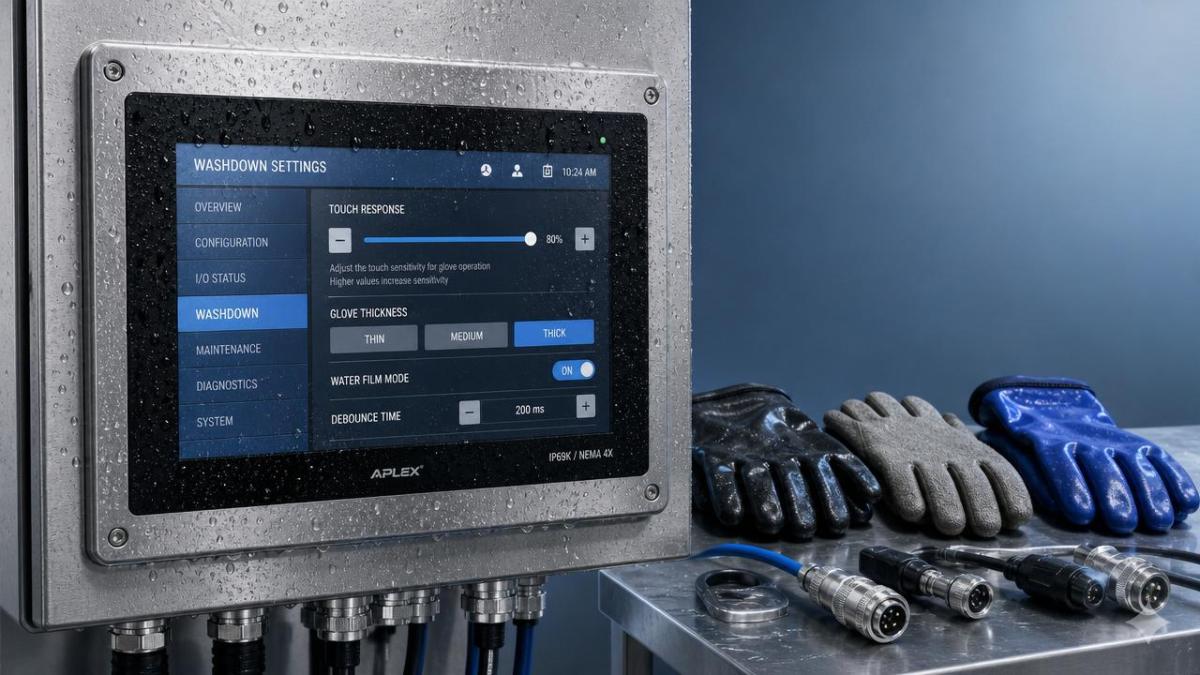
More often, response changes come from interaction between gloves, water film, grounding, firmware, and touch parameter settings.
That matters during service work because many reported “dead screens” are not true hardware failures.
A wrong diagnosis can trigger unnecessary panel replacement, longer downtime, and repeated site visits.
From an engineering view, ip69k hmi screen touch sensitivity depends on signal recognition under difficult surface conditions.
IP69K protection adds another layer of complexity because the front surface, gasket, and cover lens are built for pressure wash resistance.
That robust construction improves survivability, but it can alter touch behavior compared with standard indoor panels.
The key is to separate normal design limits from abnormal faults.
This also means service decisions should begin with touch physics, not assumptions.
How Gloves Affect IP69K HMI Screen Touch Sensitivity
Many IP69K panels use projected capacitive touch technology.
It detects changes in an electrostatic field when a conductive object approaches the sensing grid.
Bare fingers usually work well because the coupling effect is strong and predictable.
Gloves change that coupling strength.
Thin nitrile gloves may still allow acceptable response.
Thick rubber, insulated winter gloves, or multilayer cut-resistant gloves often reduce signal transfer sharply.
When users report delayed taps, missed icons, or pressure-like tapping behavior, glove thickness is a first checkpoint.
More noticeable signals include complaints that the screen works during setup but fails during production washdown shifts.
In actual field service, operators often change glove type without informing maintenance teams.
That small operational change can look like an HMI fault.
To troubleshoot ip69k hmi screen touch sensitivity under glove use, check these points first.
- Compare response with bare finger, thin glove, and production glove.
- Test the same icon size because small targets exaggerate sensitivity complaints.
- Confirm whether glove mode exists in firmware or panel settings.
- Check if the front glass has additional protective film installed later.
If response improves immediately with thinner gloves, the panel may be working within design expectations.
That is a process compatibility issue, not proof of failed electronics.
Why Water and Spray-Down Conditions Disrupt Response
Water is one of the biggest reasons ip69k hmi screen touch sensitivity feels inconsistent.
IP69K means the enclosure survives high-pressure, high-temperature washdown.
It does not mean touch detection remains identical while water sits on the active surface.
A thin water film can create unintended conductive paths across the glass.
Droplets can look like multiple touch points or continuous touch noise to the controller.
In some cases, the firmware rejects all touches to prevent false input.
In other cases, it becomes slow, unstable, or positionally inaccurate.
This is especially common after cleaning cycles, outdoor wash areas, food processing lines, and pharmaceutical zones.
If operators say the screen recovers after wiping dry, water interference is the likely cause.
The issue becomes more severe when detergent residue remains on the lens.
Mineral deposits can also change surface conductivity over time.
That is why cleaning method and water quality belong in every response investigation.
- Dry the surface fully and retest before opening the enclosure.
- Inspect for soap film, salt residue, or scaling on the cover lens.
- Review whether the complaint appears only after washdown or mist exposure.
- Check firmware notes for water rejection or palm rejection tuning.
This practical sequence often saves time and prevents avoidable replacement of a healthy HMI front end.
Which Settings Most Often Influence Touch Performance
Settings are the third major factor behind ip69k hmi screen touch sensitivity issues.
A panel can be electrically healthy yet feel unreliable because the touch controller is tuned for the wrong environment.
Different vendors use different labels, but the same parameter families appear again and again.
- Sensitivity threshold for detecting weak touch signals.
- Debounce time for filtering accidental short contacts.
- Water rejection mode for ignoring fluid-related noise.
- Glove mode for accepting lower coupling strength.
- Calibration or coordinate mapping after service replacement.
A threshold set too low can cause ghost touches.
A threshold set too high can make real touches disappear.
Long debounce improves noise immunity, but it can feel slow to the operator.
Glove mode may increase usability, yet it may also reduce immunity to moisture events.
That tradeoff is easy to miss when changes are made remotely during urgent downtime.
In practical maintenance work, always record parameter values before adjustment.
Without a baseline, later comparison becomes guesswork.
Quick Reference Table for Common Symptoms
A Field Troubleshooting Workflow That Reduces False Faults
A clear sequence is the fastest way to solve ip69k hmi screen touch sensitivity complaints.
It also fits TSV’s engineering principle that parameters, not assumptions, should drive decisions.
- Confirm the exact symptom, timing, and operating condition.
- Retest with a clean, dry surface before deeper intervention.
- Compare bare finger, approved glove, and actual production glove.
- Check installed films, overlays, or replacement front sheets.
- Review touch settings, firmware version, and recent changes.
- Inspect grounding, bonding, and nearby electrical noise sources.
- Only then consider touch hardware replacement.
This order matters because environmental causes are often faster to verify than internal faults.
It also creates cleaner service records for recurring cases across multiple sites.
When identical models behave differently, compare site conditions rather than assuming inconsistent manufacturing quality.
Grounding quality, cleaning chemistry, and glove sourcing can vary more than expected.
When to Escalate and What Data to Collect
Some ip69k hmi screen touch sensitivity cases do require vendor escalation.
The difference is that escalation should be supported by usable evidence.
Collecting the right data shortens the support cycle and improves root cause analysis.
- Panel model, firmware revision, and controller version.
- Glove material, thickness, and approved operating practice.
- Dry versus wet response behavior under repeatable conditions.
- Cleaning agent type and post-wash residue observations.
- Current touch parameter set and recent configuration history.
- Grounding measurements and nearby inverter or motor activity.
With this information, support teams can distinguish design limitation, tuning mismatch, contamination, and actual hardware failure far more quickly.
That approach reduces trial-and-error cost and keeps service work aligned with engineering truth.
In the end, reliable ip69k hmi screen touch sensitivity comes from matching the panel, the environment, and the settings as one system.
Start with gloves, surface moisture, and configuration.
Those three checks solve a surprising number of touch response complaints before any parts are replaced.
Search News
Hot Articles
- Carbon Fiber StructuresHow to Specify Aerospace Carbon Fiber Assemblies for Lightweight, Load-Bearing PartsJul 11, 2026
- Machine VisionXiaomi, Alibaba DAMO Academy Drive Open-Source Robotics Model Ecosystem, Lowering Algorithm Development Barriers for Overseas SMEs Adopting Chinese Robotics SolutionsMar 30, 2026
- Cobots & ArmsShanxi 'AI+' Conference Showcases Embodied Intelligence with Multinational Buyer Engagement: Key Industry ImplicationsMar 30, 2026
Popular Tags
Recommended News
 Jul 11, 2026How to Specify Aerospace Carbon Fiber Assemblies for Lightweight, Load-Bearing PartsAerospace carbon fiber assemblies: learn how to specify laminate design, load data, joining methods, and inspection controls for lighter, reliable load-bearing aerospace parts.Elena Rostova (UAV Systems Researcher)
 Mar 30, 2026Xiaomi, Alibaba DAMO Academy Drive Open-Source Robotics Model Ecosystem, Lowering Algorithm Development Barriers for Overseas SMEs Adopting Chinese Robotics SolutionsXiaomi & Alibaba DAMO Academy's open-source robotics models lower algorithm barriers for global SMEs. Boost efficiency in manufacturing, logistics & smart retail with ROS 2 compatible solutions.TSV Data Lab
 Mar 30, 2026Shanxi 'AI+' Conference Showcases Embodied Intelligence with Multinational Buyer Engagement: Key Industry ImplicationsShanxi 'AI+' Conference highlights embodied intelligence with Tesla, Ubtech & Jiantao showcasing multimodal robotics. 40+ global buyers validated tech on-site, creating new B2B channels for industrial automation & AI solutions.Chen Wei (Automation Lead Engineer)
 Mar 30, 2026Zhongguancun Unveils 6G Integrated Sensing-Computing-Intelligence Platform to Empower Embodied Robots for Global Industrial ApplicationsZhongguancun's new 6G platform revolutionizes industrial robotics with <10ms latency, empowering global automotive, logistics & port automation. Discover how this tech boosts China's smart manufacturing exports.TSV Data Lab
 Mar 30, 2026Mech-Mind Tianjin Embodied Intelligence R&D and Production Base Goes Live, Cutting Delivery Time by 20%–30% for Global Customized AMR+Vision SolutionsMech-Mind's Tianjin AMR+Vision production base cuts delivery time by 20%-30% for欧美 & Latin American markets. Discover how this PLd-certified facility accelerates customized robotics solutions for smart manufacturing and logistics.Chen Wei (Automation Lead Engineer)
 Mar 30, 2026Boao Forum Reveals 'Co-evolution of Big and Small Brains' Trend in Humanoid Robots, China's Embodied Intelligence Accelerates Adaptation to Overseas Manufacturing Service ScenariosDiscover how China's humanoid robots, featuring 'Co-evolution of Big and Small Brains,' are revolutionizing global manufacturing. Learn about Embodied Tian Gong 3.0's ISO compliance and overseas deployment at Boao Forum 2026.Chen Wei (Automation Lead Engineer)
 Mar 30, 2026China Railway Industrial Secures Patent for Embodied Robotics in Material Handling, Boosting High-Precision Delivery Capabilities for Overseas Infrastructure and Manufacturing ProjectsChina Railway Industrial's new patent for embodied robotics in material handling boosts high-precision delivery for global infrastructure & manufacturing. Discover how this innovation enhances logistics accuracy in automotive, rail transit & EPC projects.Chen Wei (Automation Lead Engineer)
 Oct 25, 2026Hesai Leads Global ADAS Main Lidar Shipments in Yole’s 2026 ReportHesai led global ADAS main lidar shipments with a 43% share in 2025, according to Yole’s 2026 report. Explore what this ranking reveals about its automotive market position.TSV Data Lab
 Oct 25, 2026Choosing an Aerospace Materials Manufacturer: Quality and Traceability ChecksChoosing an aerospace materials manufacturer? Learn how to verify certifications, test reports, and lot traceability to qualify suppliers confidently and reduce costly sourcing risks.Dr. Marcus Vance
 Oct 24, 2026Guotai Haitong: Global Entry-Level 3D Printer Shipments Rose 39% in Q1 2026Entry-level 3D printer shipments rose 39% in Q1 2026, Guotai Haitong reports. Explore how AI, multicolor printing and print farms are shaping market growth.Dr. Marcus Vance
 Oct 24, 2026Choosing an Industrial Vision Inspection Supplier: Acceptance Tests That MatterChoose an industrial vision inspection supplier with confidence. Discover acceptance tests for defect detection, false rejects, production speed, and reliable part rejection before you buy.TSV Data Lab
 Oct 23, 2026US Navy Raises Gecko Robotics Contract Ceiling to $300M for Robotic Fleet MaintenanceUS Navy raises Gecko Robotics’ contract ceiling to $300M for Pacific Fleet robotic inspections. Explore potential opportunities for maintenance suppliers and key procurement considerations.Chen Wei (Automation Lead Engineer)
 Oct 23, 2026Choosing Industrial Sensing Systems for Global Plants: Protocol CompatibilityCompare industrial sensing systems international buyers can trust. Explore protocol compatibility, reduce integration risks, and select proven configurations for reliable global plant deployments.TSV Data Lab
 Oct 22, 2026KUKA Showcases Physical AI and iiQKA.AI Vision at NVIDIA GTC BerlinExplore KUKA’s Physical AI showcase at NVIDIA GTC Berlin and discover how iiQKA.AI Vision aims to simplify robotic vision integration and improve 2D and 3D scene recognition.TSV Data Lab
 Oct 22, 2026Robotic Machining of Advanced Composites: What Tolerances Are Achievable?Explore advanced materials machining robotics: discover what drives achievable composite tolerances and how to validate accuracy before investing in your next machining system.Dr. Marcus Vance
 Oct 21, 2026China’s Industrial Robot Exports Near RMB 10 Billion in First Nine Months of 2026China’s industrial robot exports neared RMB 10 billion in January–September 2026, with value rising faster than volume. Explore the data and what it could mean for suppliers.Chen Wei (Automation Lead Engineer)
 Oct 21, 2026Low-Latency Industrial Data Processing: Pricing and Key Cost DriversExplore industrial data latency price drivers, from edge hardware to integration and support. Learn how to compare quotes, verify performance, and avoid unnecessary costs.TSV Data Lab
 Oct 20, 2026KUKA Launches iiQKA.AI Vision to Simplify Industrial Image ProcessingKUKA iiQKA.AI Vision simplifies industrial image processing with controller-based 2D and 3D vision. Explore drag-and-drop setup for vision-guided automation.TSV Data Lab
 Oct 20, 2026Smart Industrial Edge Devices: Key Criteria for Legacy PLC IntegrationChoose smart industrial edge devices for legacy PLC integration. Discover key criteria for compatibility, data quality, security, and reliable collection without disrupting control.TSV Data Lab
 Oct 19, 2026Choosing a Radar Sensor by Application: Range, Resolution, and Field of ViewSimplify radar sensor application based product selection. Compare range, resolution, and field of view to avoid blind spots and choose with confidence. Explore the guide.TSV Data Lab
 Oct 18, 2026Comparing Material Options for Procurement: Specs, Costs, and Supply RisksExplore procurement oriented technical content on material options, specs, costs, and supply risks. Compare alternatives to cut hidden expenses and make confident sourcing decisions.Dr. Marcus Vance
 Oct 17, 20265-Axis CNC Positioning Accuracy: How to Interpret ISO 230-2 Test ResultsAssess 5 axis CNC machining positioning accuracy with ISO 230-2. Learn to interpret repeatability, reversal error, and test conditions to compare suppliers and make confident acceptance decisions.Dr. Marcus Vance
 Oct 16, 2026Choosing a Rugged Edge AI Box Supplier: Thermal Tests and Lifecycle SupportChoose a rugged edge AI box supplier with proven thermal performance and reliable lifecycle support. Discover the tests and commitments to verify before you buy.TSV Data Lab
 Oct 15, 2026R&D Cost Reduction Services: How to Evaluate Fees, Savings, and ROIEvaluate R&D cost reduction services with confidence. Compare fees, verify savings, and calculate ROI without compromising performance. Discover how to choose a provider that delivers real value.Chen Wei (Automation Lead Engineer)